Terminal, browser, and files
Open a terminal, web browser, and file explorer beside your chat, and track activity, changes, and jobs.
Workspace tools
The buttons at the top right of the app open tools beside your chat. RedCell can use them too: ask it to open a page in the browser or run something in the terminal, and you can watch.
| Tool | Open with | Use it to |
|---|---|---|
| Terminal | Ctrl+`` or /terminal | Run your own commands in the project folder |
| Browser | /browser | Browse a target site, or watch RedCell browse one |
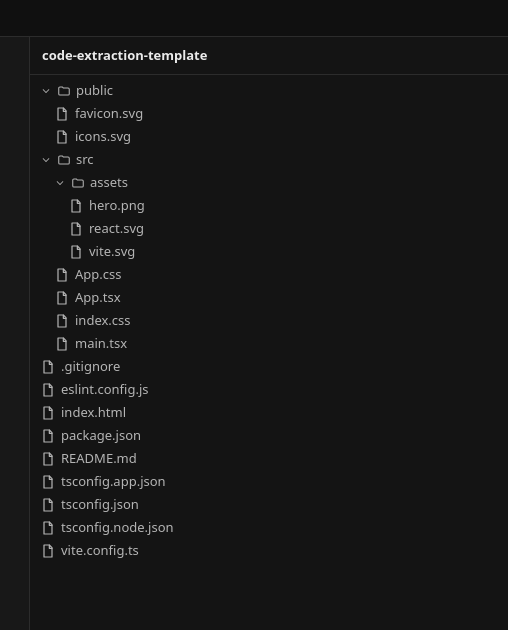
| File explorer | /files | Look through the project folder |
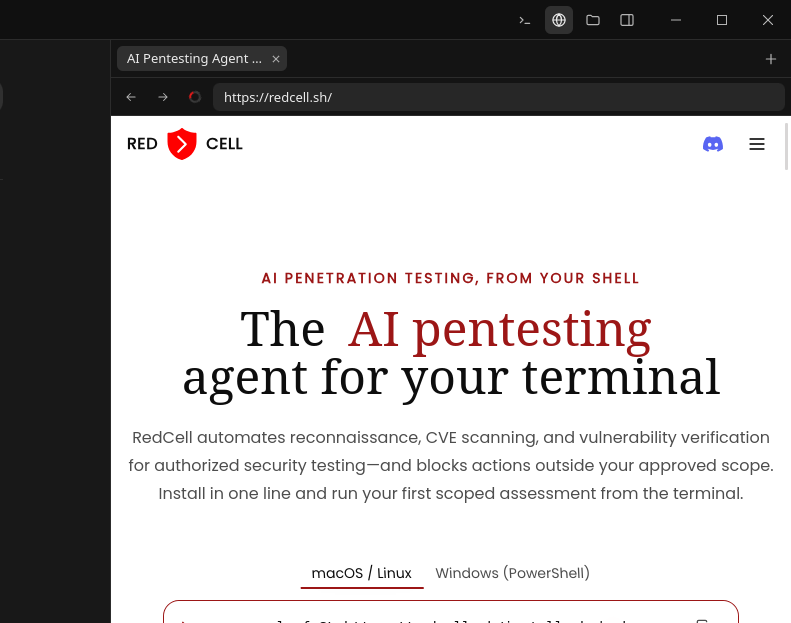
In the browser, type an address or a search in the bar, or ask RedCell to open a page.
Control what RedCell can do with them
In Settings → Terminal, browser & files, turn Let chats use the terminal, browser and files on or off. With it on:
- RedCell asks first before reading your terminals, since they may show secrets.
- It doesn't ask to see which file you have open, or to show you a file.
- It never types into password fields.
- Scheduled tasks and the CLI can't use these tools.
Activity panel
Press Ctrl+J to open the activity panel. It has three tabs:
| Tab | Shows |
|---|---|
| Activity | Status, the current plan, and every tool call in this chat |
| Changes | Files edited in this chat, or the project's full git working tree |
| Jobs | Everything running across all chats: sessions, subagents, background terminals, and scheduled runs. Each has a Stop button |
Use Jobs to find and stop anything still running, like a long scan, without opening each chat.