Chats
Start a chat in the desktop app, follow what RedCell does, and answer its approval requests.
Start a chat
Choose a project
Click Choose project in the message box and pick the folder RedCell should work in. It can read and change files there, depending on the access level you pick.
Choose access
Pick how much RedCell can do on its own:
| Access | RedCell |
|---|---|
| Read only | Reads files. Asks before anything else |
| Workspace | Edits inside the project. Asks before going outside it |
| Full access | Runs with no sandbox and no approval prompts |
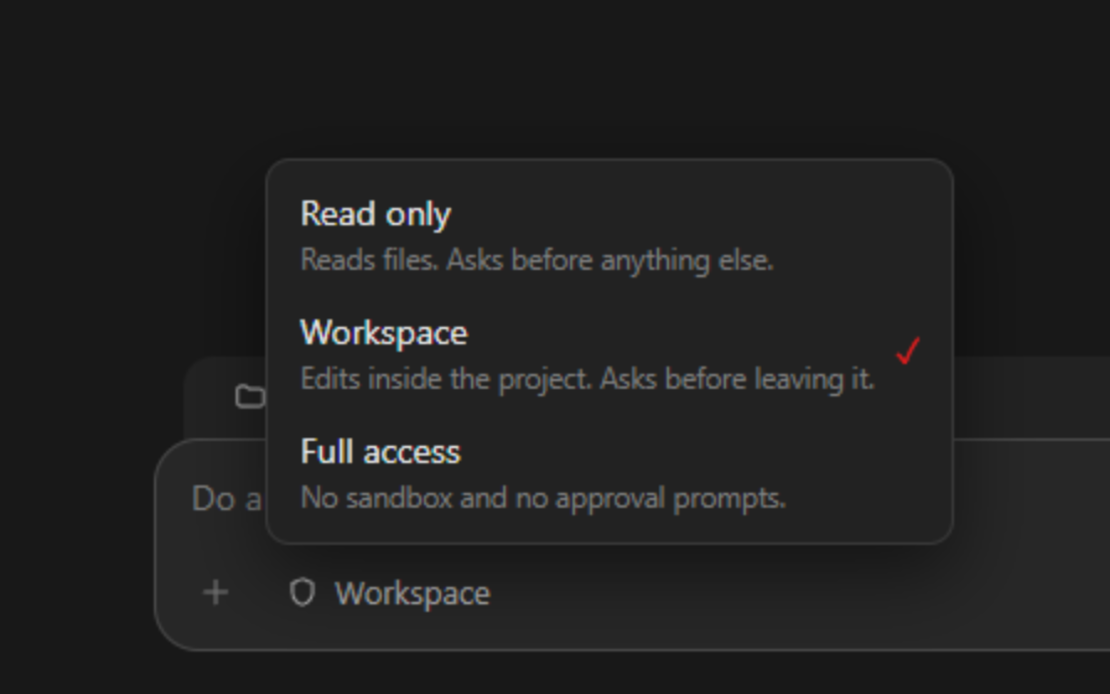
Learn more in Permissions.
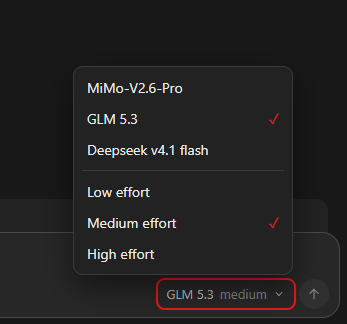
Choose a model and effort
Pick a model and how hard it should think. Higher effort is slower but more thorough. See Models.
Describe your task
Type what you want and press Enter. For example: Review this repo for hardcoded secrets and injection bugs.
Follow along
The chat shows a live timeline of RedCell's reasoning, the commands it runs, the files it edits, and the tools it calls.
- Change direction mid-run. Send another message while RedCell is working. It adjusts without starting over.
- Stop it. Press
Escor click Stop. - See the details. Open the activity panel with
Ctrl+J. See Workspace tools.
Answer approvals
When RedCell needs permission, a request appears above the message box:
| Request | RedCell wants to |
|---|---|
| Run this command? | Run a command your access level doesn't allow |
| Allow network access to HOST? | Reach a host on the network |
| Apply these edits? | Change files |
| Grant extra permissions? | Get more access than the current level |
Depending on the request, you can choose:
| Button | Effect |
|---|---|
| Allow / Apply | Allow this once |
| Allow for this session | Allow it for the rest of this chat |
| Always allow this command / Always allow this host | Never ask about this command or host again |
| Decline | Refuse. RedCell tries another way |
| Decline and stop | Refuse and stop the run |
RedCell can also ask you a question. Pick an answer, or choose Something else and type your own.
The app can play a sound when a reply finishes or RedCell needs you. Change this in Settings → Notifications.
Add context
- Images: click Attach images, paste them, or drag them into the message box.
- Plugins: in Customize, open a plugin and click Try now to start a chat with it attached.
Slash commands
Type / in the message box:
| Command | What it does |
|---|---|
/new | Start a new chat |
/model | Choose the model |
/effort | Choose the reasoning effort |
/permissions | Choose the access level |
/compact | Summarize this chat to free up context |
/rename | Rename this chat |
/diff | Show the changes made in this chat |
/stop | Stop the current run |
/archive | Archive this chat |
/terminal, /browser, /files | Open a workspace tool |
/scheduled | Open scheduled tasks |
/computer | Control this computer. See Computer use |
/settings | Open settings |
Find old chats
Your recent chats are listed in the sidebar. Use Search chats to find one. Archived chats are in Settings → Archived chats.
Chats are shared with the CLI, so you can continue a desktop chat with redcell resume and the other way round.