Install the desktop app
Download RedCell for macOS, Windows, or Linux and sign in.
The desktop app gives you RedCell in a window: chats, a live view of what the agent is doing, and a built-in terminal, browser, and file explorer.
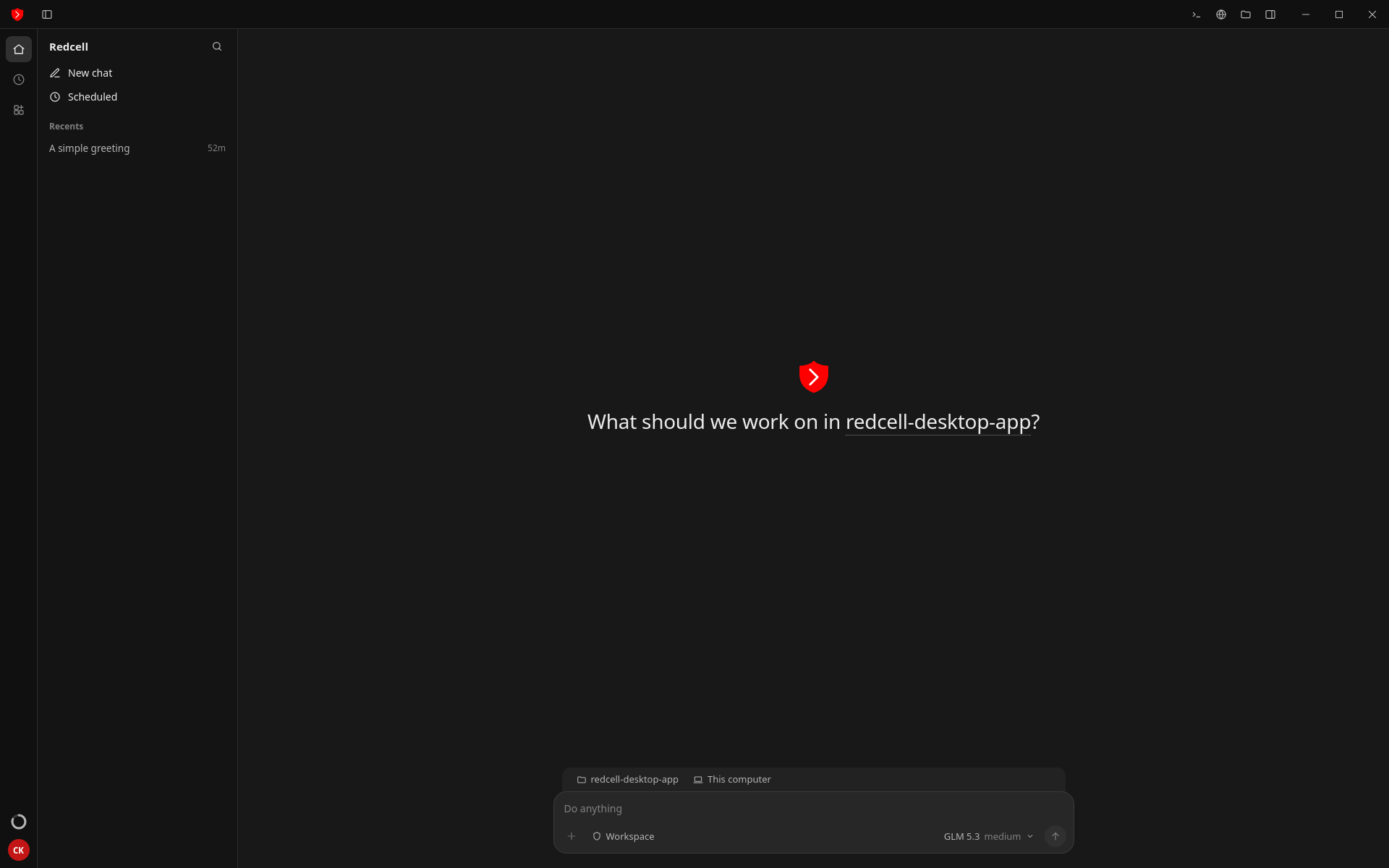
It runs the same agent as the CLI and includes it, so you don't need to install the CLI separately. If you use both, they share your sign-in, settings, plugins, and MCP servers.
Before you begin
- A RedCell account. Sign up if you don't have one.
- One of these systems:
| System | File |
|---|---|
| macOS, Apple Silicon (M1 or later) | .dmg |
| Windows, 64-bit | .exe |
| Linux, x64 or arm64 | .AppImage, .deb, or .rpm |
Intel Macs and Windows on ARM aren't supported.
Install
Download the app
Go to the desktop app download page and download the file for your system.
Install it
Open the .dmg and drag Redcell into Applications. Then open it from Applications.
Sign in
Click Sign in with browser. Your browser opens. Sign in to your RedCell account and approve the request, then go back to the app.
If you've already signed in with the CLI on this computer, you're signed in already.
Verify
You see What should we work on? with a message box at the bottom. Your remaining quota shows at the bottom of the left rail.
Open System Settings → Privacy & Security, scroll down, and click Open Anyway next to the message about Redcell. Then open the app again.
Click More info, then Run anyway.
The harness is the RedCell agent the app runs. Click Install Redcell CLI to install it, or install the CLI yourself and reopen the app.
Update
When a new version is out, an Update to vX.Y.Z button appears in the app. Click it to install the update. On Windows, the app closes, updates, and reopens.
On Linux, only the AppImage updates itself. If you installed the .deb or .rpm, download and install the new version from the download page.